#6 Final Prototype and Video

Have fun with this Video to find out what my actual Prototype is.

Reflection

This project began with a vague idea to visualize CO₂ emissions — and slowly took shape through cables, sensors, and a healthy amount of trial and error. Using a potentiometer and a proximity sensor, I built a simple system to scroll through time and trigger animated data based on presence. The inspiration came from NFC tags and a wizard VR game (yes, really), both built on the idea of placing something physical to trigger something digital. That concept stuck with me and led to this interactive desk setup. I refined the visuals, made the particles feel more alive. I really want to point out how important it is to ideate and keep testing your ideas, because there will always be changes in your plans or something won’t work etc. Let’s go on summer vacation now 😎

#5 Vizualisation Refinement and Hardware Setup

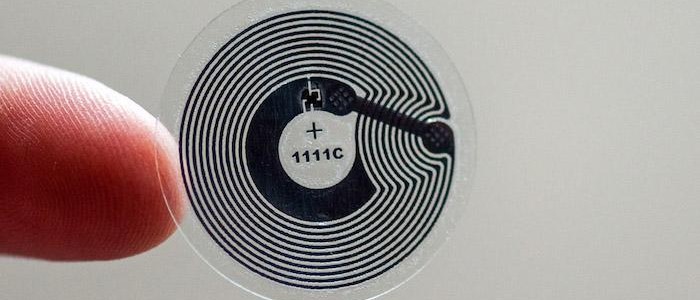
Over the past few weeks, this project slowly evolved into something that brings together a lot of different inspirations—some intentional, some accidental. Looking back, it really started during the VR project we worked on at the beginning of the design week. We were thinking about implementing NFC tags, and there was something fascinating about the idea that just placing an object somewhere could trigger an action. That kind of physical interaction stuck with me.

NFC Tag

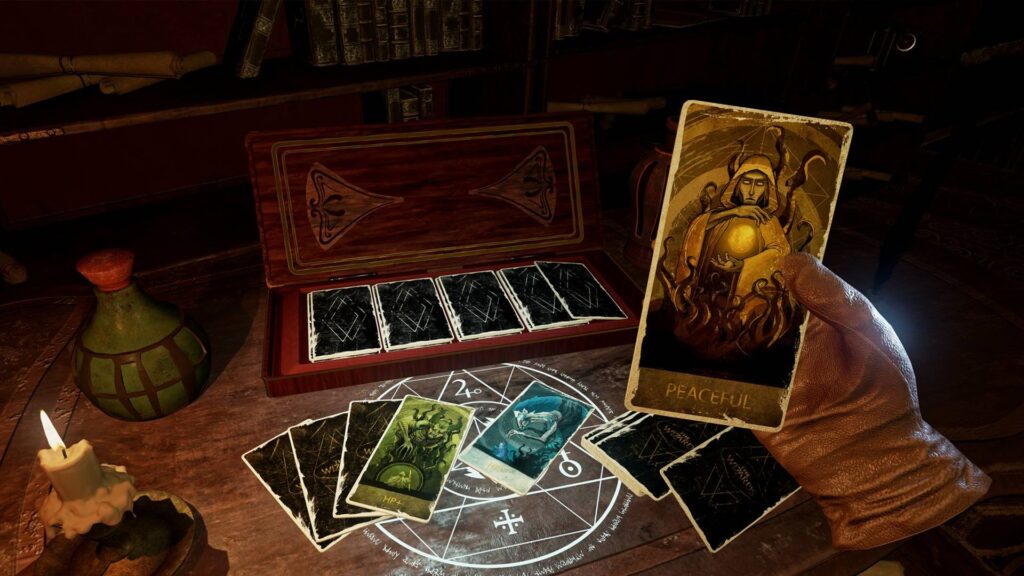
Around the same time, we got a VR headset to develop and test our game. While browsing games, I ended up playing this wizard game—and one small detail in it fascinated me. You could lay magical cards onto a rune-like platform, and depending on the card, different things would happen. It reminded me exactly of those NFC interactions in the real world. It was playful, physical, and smart. That moment clicked for me, I really like the idea that placing something down could unlock or reveal something.

Wizard Game

Closing the Circle

That’s the energy I want to carry forward into the final version of this project. I’m imagining an interactive desk where you can place cards representing different countries and instantly see their CO2 emission data visualized. For this prototype, I’m keeping it simple and focused—Austria only, using the dataset I already processed. But this vision could easily scale: more countries, more visual styles, more ways to explore and compare. Alongside developing the interaction concept, I also took time to refine the visualization itself. In earlier versions, the particle behavior and data mapping were more abstract and experimental—interesting, but sometimes a bit chaotic. For this version, I wanted it to be more clear and readable without losing that expressive quality. I adjusted the look of the CO2 particles to feel more alive and organic, giving them color variation, slight flickering, and softer movement. These small changes helped shift the visual language from a data sketch to something that feels more atmospheric and intentional. It’s still messy in a good way, but now it communicates more directly what’s at stake.

Image Reference

Image 1 (NFC Tag): https://www.als-uk.com/news-and-blog/the-future-of-nfc-tags/

Image 2 (Wizard Game): https://www.roadtovr.com/the-wizards-spellcasting-vr-combat-game-early-access-launch-trailer-release-date/

#4 Alright… Now What?

So far, I’ve soldered things together (mentally, not literally), tested sensors, debugged serial communication, and got Arduino and Processing talking to each other. That in itself feels like a win. But now comes the real work: What do I actually do with this setup?

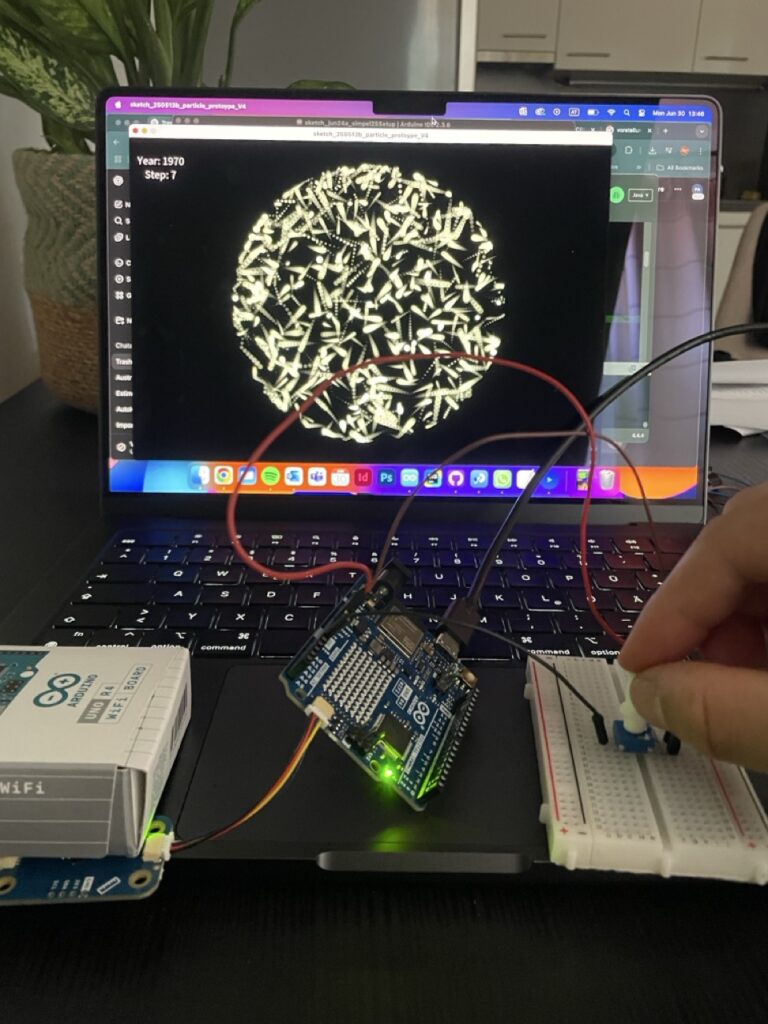
At this stage, I started combining the two main inputs—the proximity sensor and the potentiometer into a single, working system. The potentiometer became a kind of manual timeline scrubber, letting me move through 13 steps that represent a line, which should be a test for a potential timeline? The proximity sensor added a sense of presence, acting like a trigger that wakes the system up when someone approaches. Together, they formed a simple but functional prototype of a prototype, a rough sketch of the interaction I’m aiming for. It helped me think through how the data might be explored, not just visually, but physically, with gestures and motion. This phase was more about testing interaction metaphors than polishing visuals—trying to understand how something as abstract as historical emissions can be felt through everyday components like a knob and a distance sensor. This task pointed out to me, how important testing and the ideation of your ideas can be, to get a better understanding of your own thoughts and to form a more precise imagination of your plan.

Small Prototype to connect sensors in one file

Things about to get serious

Building on the knowledge I gained during the ideation phase, I connected my working sensor system, a potentiometer and proximity sensor to the Processing sketch I had developed during design week. That earlier version already included interaction through Makey Makey and homemade aluminum foil buttons, which made for a playful and tactile experience. In my opinion, the transfer to Arduino technology made the whole setup easier to handle and much cleaner—fewer cables, more direct control, and better integration with the Processing environment. The potentiometer now controls the timeline of Austria’s CO2 emissions, while the proximity sensor acts as a simple trigger to activate the visualization. This transition from foil to microcontroller reflects how the project evolved from rough experimentation into a more stable, cohesive prototype.

#3 Serial Communication Between Arduino and Processing

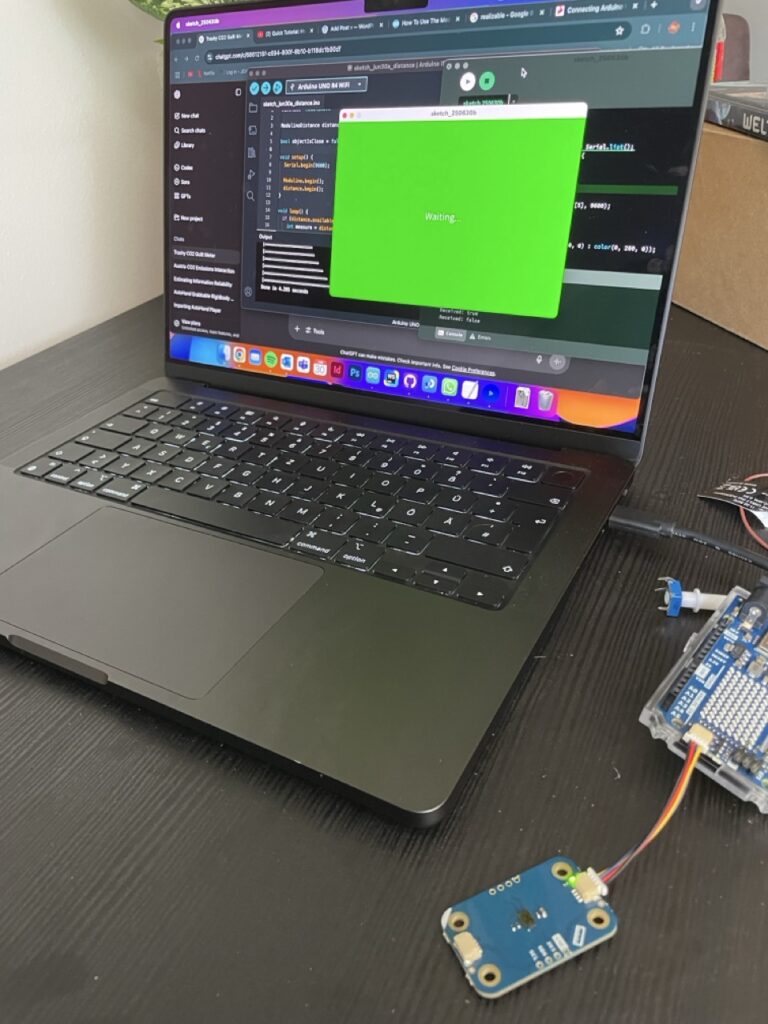
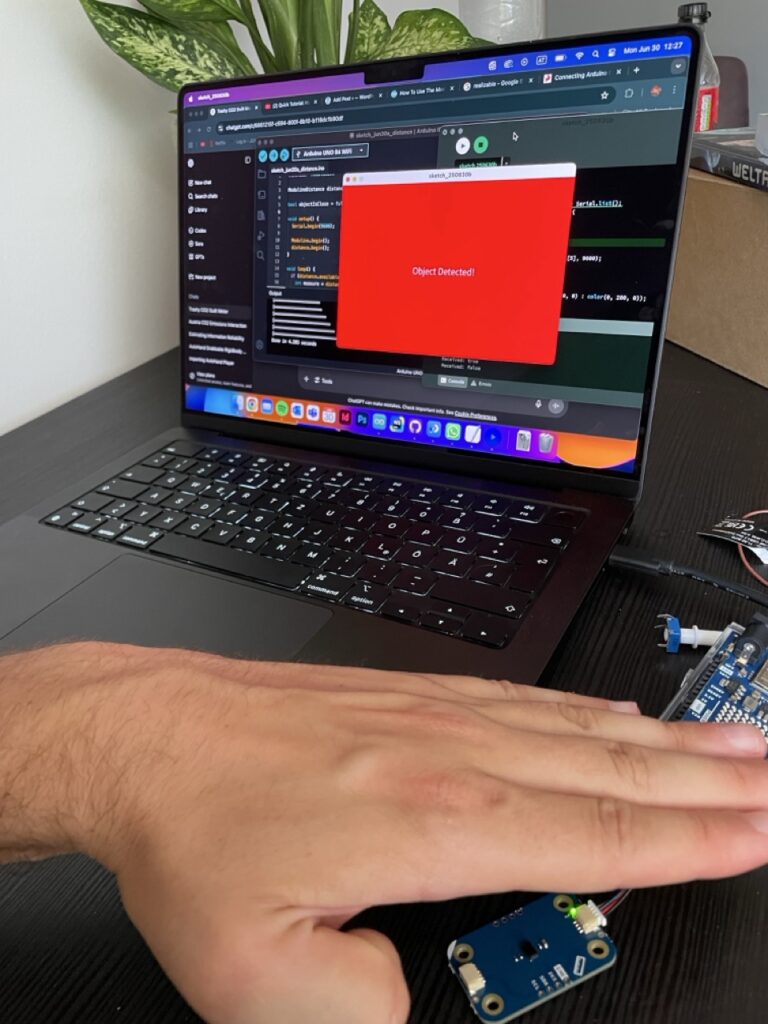
By this point, I had some sensors hooked up and was starting to imagine how my prototype might interact with Processing. But getting data from the physical world into my visuals? That’s where serial communication came in! On the Arduino side, I used “Serial.begin(9600)” to start the connection, and “Serial.println()” to send sensor values. In my case, it was messages like “true” when a hand moved close to the distance sensor, and “false” when it moved away. On the Processing side, I used the Serial library to open the port and listen for data. Every time a new message came in, I could check if it was “true” or “false”, and change what was being shown on screen — red background, green background, whatever. So I was prototyping the prototype, you could say.

Why this is so fascinating and helpful 🤯

I wanted to build something quick, easy to use and reactive—and serial communication made it possible to prototype fast without diving into WiFi, Bluetooth, or custom protocols. It lets me test ideas in minutes: turn a knob, wave a hand, watch the screen respond. And for something as conceptual and messy as visualizing CO2 history with simple and fast coding, that immediacy is everything.

Imagine you’re at an interactive museum exhibit about climate change. As a visitor approaches a screen, a hidden distance sensor detects their presence. The Arduino sends “true” to Processing, which triggers a cinematic fade-in of historical CO2 data and a narration starts playing. When the visitor steps away, the system fades back into a passive state, waiting for the next interaction. That whole experience? Driven by serial communication. One cable. A few lines of code. Huge impact.

Some helpful links for those who are interested in serial communication:

https://learn.sparkfun.com/tutorials/connecting-arduino-to-processing/all

#2 First Steps with Arduino

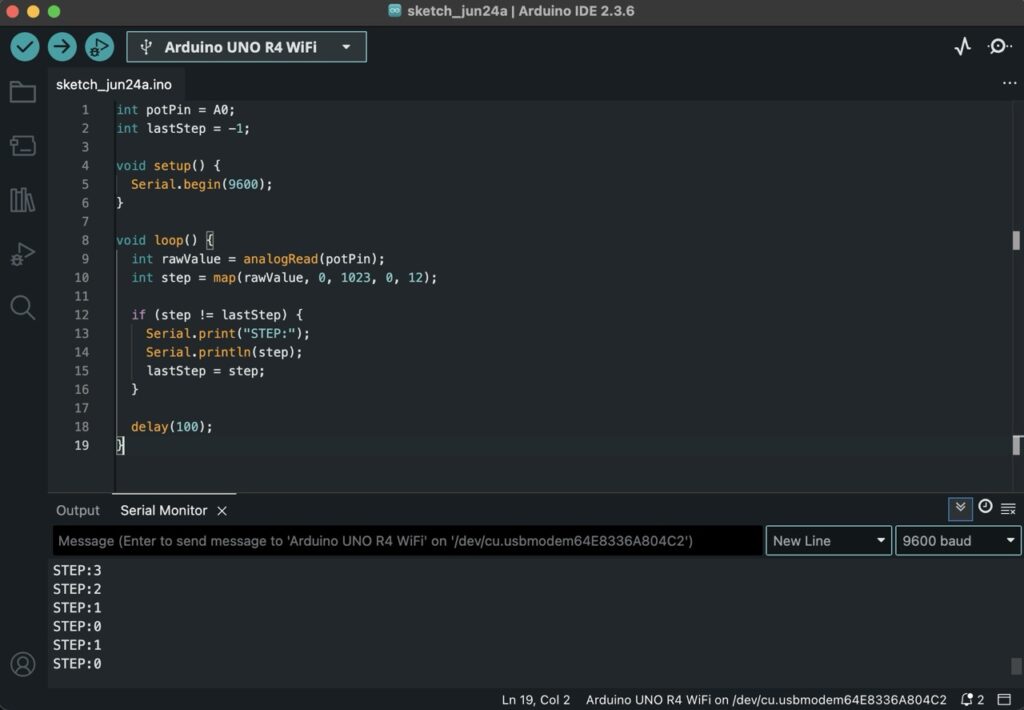
So my initial project about the CO2 emissions in AUT had 13 steps on a timeline you could loop through with key controls. So I’m thinking how am I gonna set my Arduino parts up, to work with my existing concept? This blogpost should tell you about my first steps, trying to figure that out. Connecting the parts—trying to get progress towards the concept of my existing one.

My thoughts creating this code were pretty loose at first. I just wanted to get some kind of input from the potentiometer, without fully knowing what I’d do with it yet. I had the concept of a CO2 visualization in the back of my mind, and I knew I had split the data into 13 time periods earlier, so I figured I’d map the potentiometer to 13 steps and see what happens. It was more about testing how I could interact with the data physically, using whatever tools I had lying around. The code itself is super basic—it just checks if the current step has changed and then sends that info over serial. It felt like a small but useful first step.

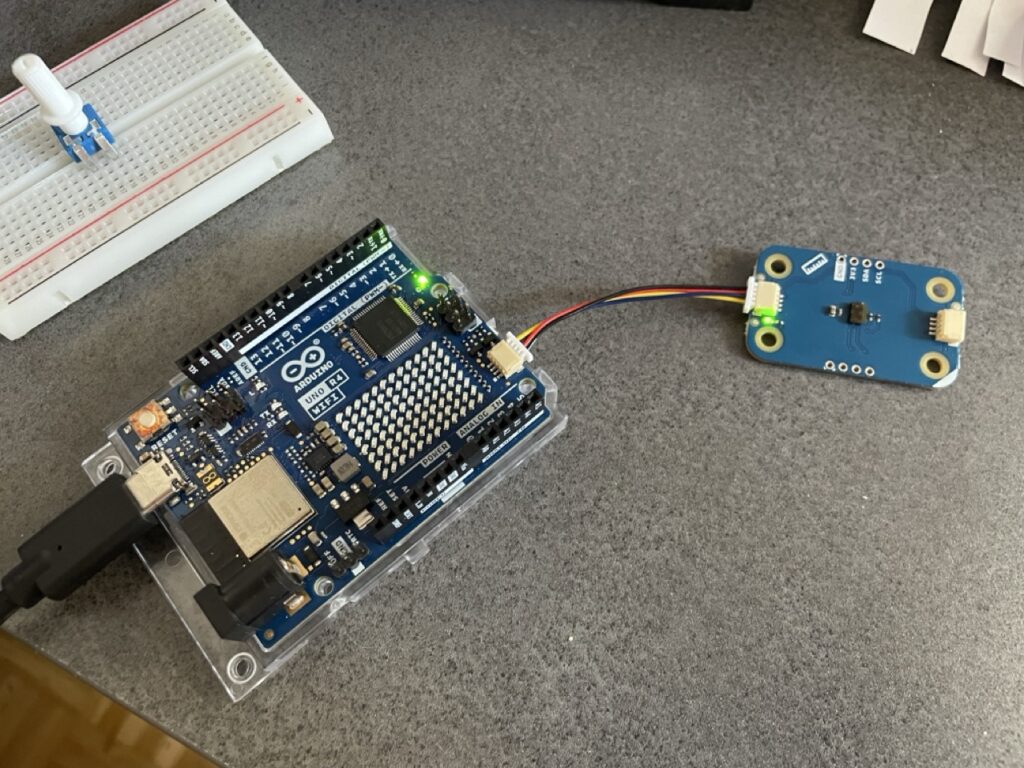
Also i integrated a distance modulino already thinking about how i could use this one for my prototype.

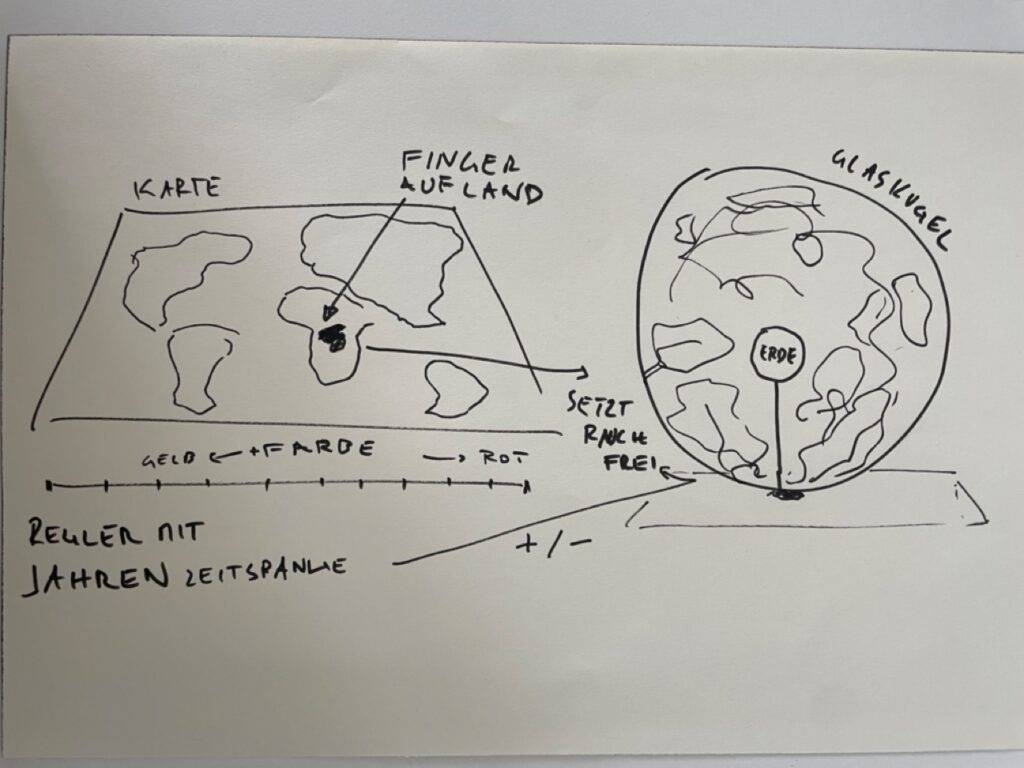
With a very basic setup from the library, to get the input of the sensor. I wrote a sketch that just triggers true or false when i move my hand over the sensor. I am thinking about my very first idea of the design week, to trigger an interaction/visualisation when i step on a plate with the shape of the country I want to see the emission data of. Maybe I can go in this direction this time? I want to give you another picture to show you what I mean.

Of course, this will not be realizable now but thinking about the map interaction could be a good concept for the technological boundaries I have set with my pieces I got from the FH.

16 Morse Code with Arduino Summary + Video

Over the semester, I built a simple Arduino-based Morse code prototype. It started with just three buttons to create Morse code messages, which were then turned into sound. I quickly realized that keeping it on one device didn’t make much sense, so I connected the Arduino to Wi-Fi and used OSC to send messages to my laptop. From there, I added a decoding function that translated Morse into readable text. In the final step, I built a basic web interface where you could type a message, send it to the Arduino, and see it displayed on an LED matrix. My idea is to use this setup to teach kids about encryption in a playful way. Along the way, I learned a lot about Arduino syntax, using libraries, and how to build Wi-Fi and web-based interfaces—opening up tons of new creative possibilities for me.

15 Creating a Web Interface for Arduino

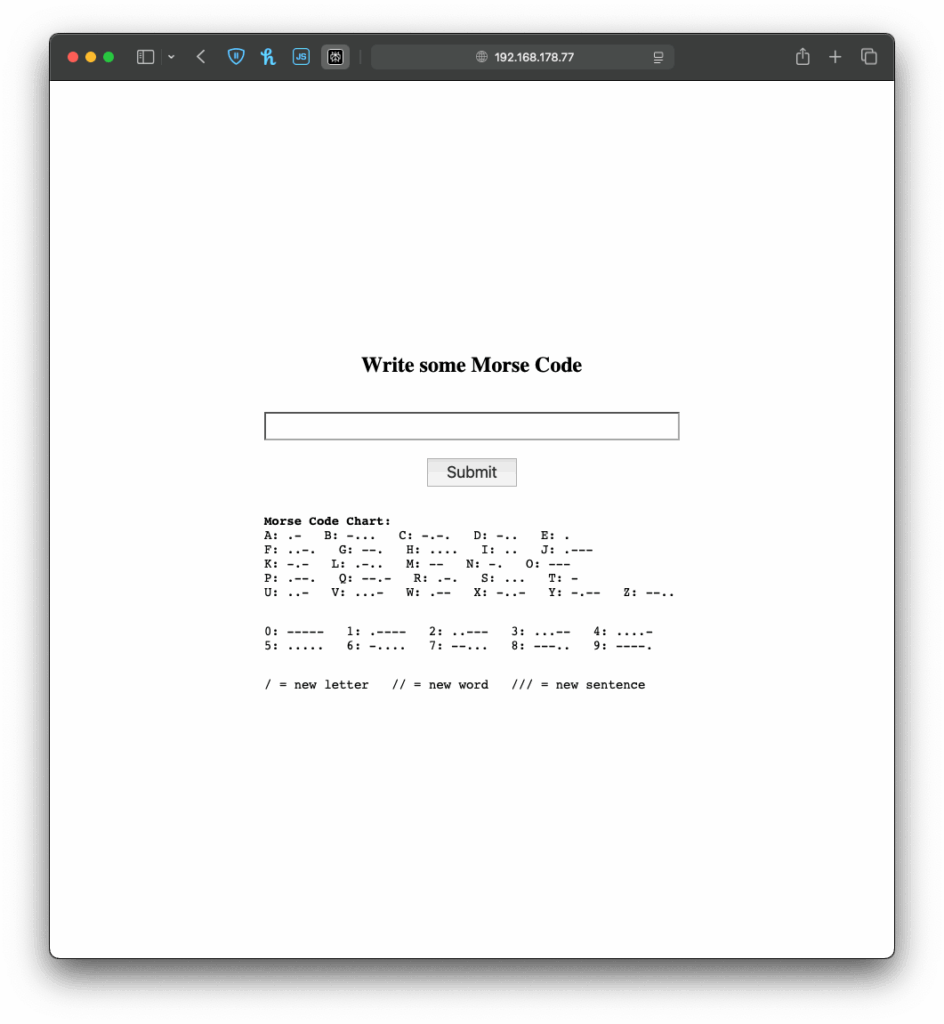
Like I have teased in the last blog post, I came across a YouTube video, that showed, how to create a web interface for an Arduino. This has a number of use cases, live sensor monitoring, remote control, live system feedback or interactive installations. This makes it possible to control how the user can interact with an Arduino, using a platform, that they already know.

When the Arduino connects to a WiFi network, it gets an IP address and starts a tiny web server that can talk to web browsers. When you open that IP address in your browser, the browser sends a request to the Arduino. The Arduino responds with a simple web page, in my case a form in which you can write morse code. If you type something and click “Submit,” the browser sends the text back to the Arduino. The Arduino reads and understands the send information and can react accordingly. This way, the Arduino works like a tiny website, letting you interact with it through any browser.

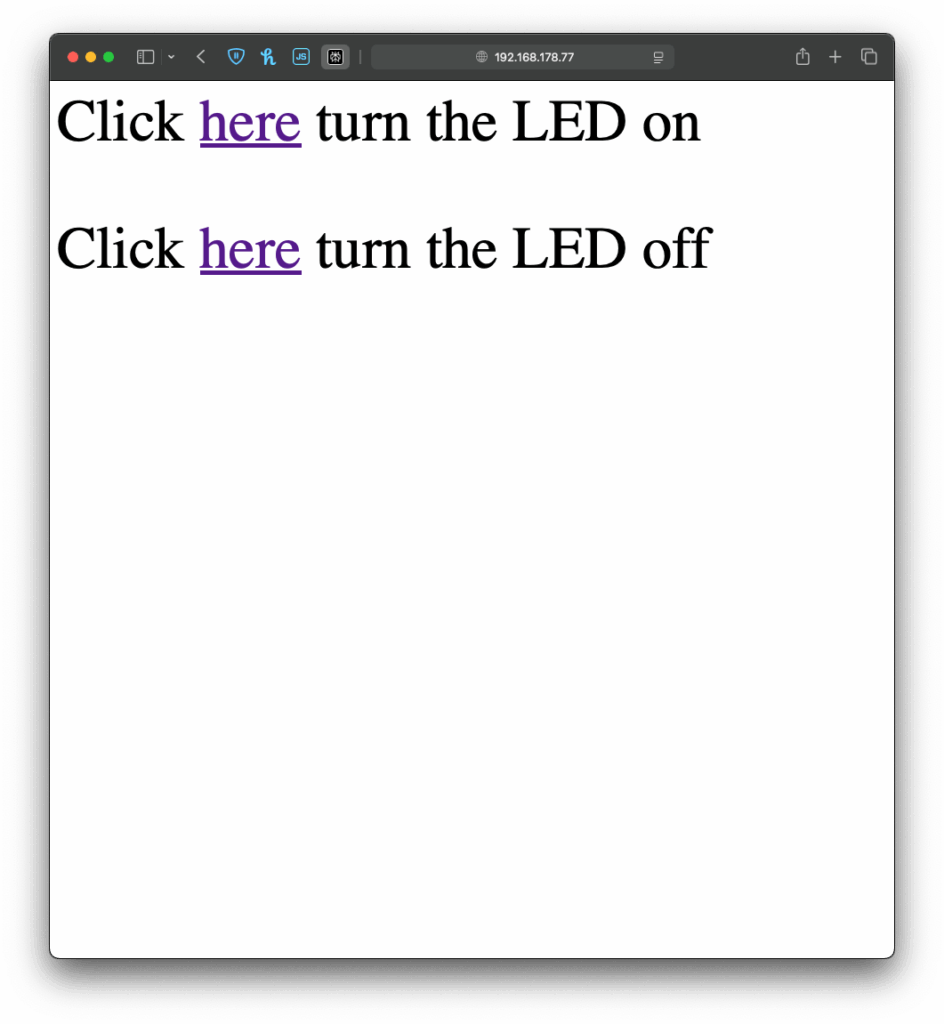
I once again started with an example, I found in the WiFiS3 library of Arduino, “SimpleWebServerWiFi”. This code generated a very simple website with which you could turn on and off an LED on the Arduino. Using this as my starting point, I first wanted to expand the web interface, which took a little longer than it would usually take to build, since I had to upload the code multiple times and change it so it finally looked “good enough” for this prototype. But doing the interface it self was just the easy part.

Before
After

Next I wanted to give my simple interface some functionality, there for the form I created on the Arduino needed to send the data input by the user back to the Arduino, so it could understand and for now translate it. And I have to be honest, I really tried to understand the code but just couldn’t figure out, how it worked, so I asked ChatGPT to help me out. Using its infinite wisdom it created a short piece of code, that converted the users input into a string, that could be understood by the code, I had written before.

The next step was easy, I added the code for decoding the message, I created last week and explained in the last blog post. Now I just needed the Arduino to display the message, after it received one, which was easy enough by just adding an “if” statement, that would only add extra content to the website, if a message had been received before. And like that, I finished the next version of my chaotic morse code prototype.

Now that I’ve built this basic version, I’ve been thinking about how this kind of setup could be used in different contexts. For example, it could be adapted for interactive museum exhibits, where visitors can type a message into a browser on their phone and trigger lights, sounds, or physical movements in an installation. It could also be used for DIY home automation, like controlling lights. Or it might become a learning tool for kids, where they can experiment with inputs and immediately see results, helping them understand communication systems like Morse code in a playful, hands-on way.

Instructions

If you wanted to try it out yourself, here was what you needed:

  • An Arduino
  • a Laptop or any other device that can use a Browser ;D

This time it is even simpler, plugin the Arduino, change the SSID & Password to fit your home WiFi network and upload the sketch. In the Serial Monitor you will then see the Arduinos IP address, now open a browser and type in the shown IP address. Now you should see the simple interface I created, the only thing to do now is to write some morse code and let the Arduino decode it.

2.3. Exploring Technology for My Lo-Fi Phygital Prototype

In my previous post, I explored phygital experiences that connect visitors to cultural content through tactile and digital storytelling. Now, I’m moving into the prototyping phase, and to bring these kinds of interactions to life, I’m turning to microcontrollers.

At the same time, I’ve been thinking more about the story I want my prototype to tell. Since my focus is on history and cultural heritage, and because I’m still fairly new to Graz, I saw this project as a unique opportunity to explore the city through this design challenge. My initial idea was to highlight the city’s well-known landmarks, but that felt too predictable. Instead, I want to uncover the hidden, quirky, and lesser-known places that give Graz its unique character. My goal is to create a lo-fi prototype that invites people to touch and listen, triggering short sounds or spoken fragments linked to unusual locations and landmarks in Graz.

Why Microcontrollers?

Microcontrollers offer a way to bridge physical input (like touch or proximity) with digital output (like sound, light, or video). They’re lightweight, flexible, and ideal for low-fidelity prototypes, the kind that let me quickly explore how interaction feels without fully building the final experience.

For a museum-like experience or an interactive city artifact, microcontrollers allow subtle, intuitive interactions, like triggering a sound when you place your hand on a surface, or activating a voice from an object when you stand near it. They’re perfect for phygital storytelling rooted in emotion, mystery, and place.

What My Prototype Needs to Do

To support this narrative direction, I want to create an experience that allows people to uncover hidden details about Graz through sound. Each interaction will trigger a short audio response that reveals something unexpected or overlooked.

Technically, it needs to:

  • Input: Detect touch or proximity
  • Output: Play short audio clips
  • Interaction: Simple, screen-free feedback
  • Portability: USB- or battery-powered
  • Expandability: Easy to add more spots and sounds

Why Sound?

For this project, sound will serve as the main storytelling layer. 

Each interaction might trigger:

  • A whispered story or urban myth
  • A short audio poem or phrase
  • Field recordings from that specific location
  • A strange or surreal audio cue (like an echo, animal noise, or machine hum)

Unlike visuals or text, sound allows for immediacy and interpretation. People don’t just hear, they imagine. And that makes it ideal for revealing the hidden soul of a place like Graz.

Microcontroller Options

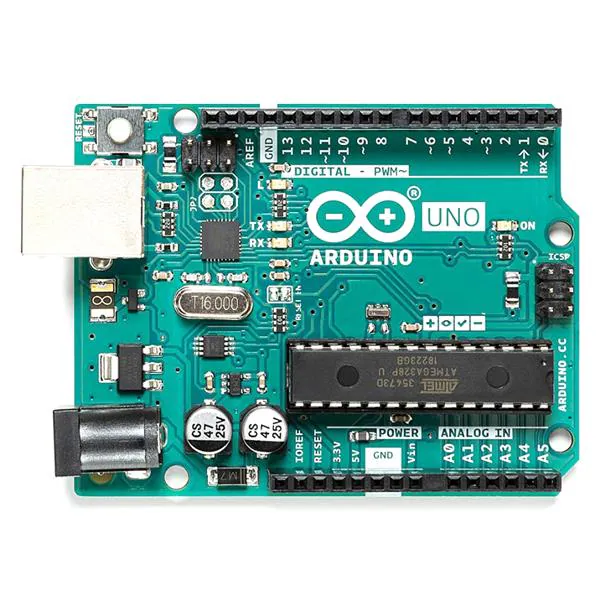
Arduino UNO
+ Compatible with sensors and DFPlayer Mini, well supported.
– Requires extra components for audio, more setup.

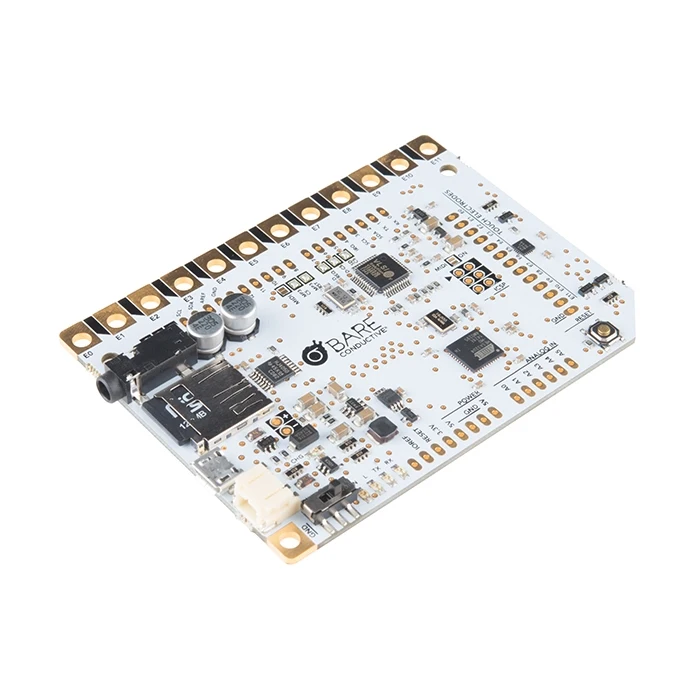
Touch Board (Bare Conductive)
+ 12 built-in capacitive touch sensors, MP3 playback from microSD, perfect for touch-based sound triggers.
– Slightly bulkier and more expensive, fewer I/O pins.

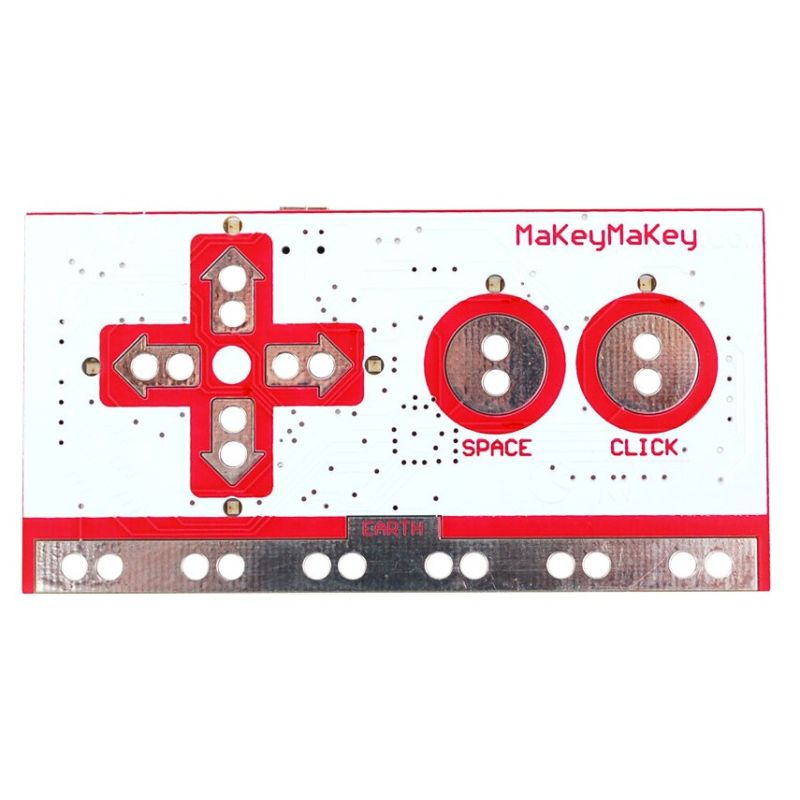
Makey Makey
+ Very fast and beginner-friendly.
– Needs a computer, limited interaction types, not standalone.

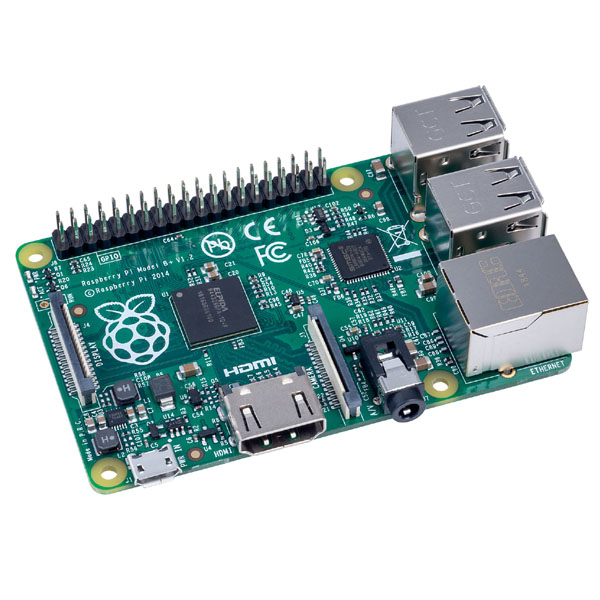
Raspberry Pi
+ Great for future audio-visual expansion.
– Too complex for lo-fi prototyping, more fragile.

What’s Next

After this research, I’ve decided to use the Touch Board for my first prototype. It’s specifically designed for sound-triggered, touch-based interactions, making it ideal for what I want to create: a playful and poetic interface that reveals hidden stories through sound. Its built-in MP3 playback and capacitive touch support mean I can keep my setup compact and focus on designing the experience, not just wiring the tech.

My first test setup will include:

  • Input: Touch sensor (built into the board)
  • Output: MP3 sound through speaker/headphones
  • Feedback: A single LED to show when a sound is playing
  • Goal: When someone touches a marked location on the map, a sound plays, revealing part of Graz that’s normally overlooked.

This early version will help me test the feeling of the interaction before I scale up to a full map or multi-point layout.

14 Adding encryption to Morse Arduino

After getting the Arduino to encode Morse messages and send them to a connected Max patch (see the last blogpost), I took the next step. So far, I built a way to create messages, and a way to transmit them, but not everyone was able to simply read and understand morse code, so the next step was obvious: build a way the messages could be read in clear text. The idea was simple: after every message got “sent”, the Arduino would take the Morse code string and convert it into readable text.

My first attempt was a long list of if statements, which worked, but I had hoped for an easier way to add and administrate different dot & dash combinations. Next I thought of using a switch statement to iterate through the combinations, but Arduino doesn’t support those, so I had to come up with a new idea. After searching on the internet, I came across a different solution, using arrays. So I rewrote it using arrays that mapped Morse code strings to letters. That gave me something that felt like a switch statement. It was now much cleaner, and easier to add custom combinations later.

Before:

After:

The decoding worked like this: one array was filled with all the Morse code symbols, and one with the matching letters. The code then iterated through the Morse message character by character, building a temporary substring that represented a single Morse symbol (like “.-” or “–“). Whenever it hit a slash (/), the program knew it had reached the end of one symbol. It then compared the collected substring to all entries in the Morse array. When it found a match, it took the corresponding index in the letter array to find the translation. That translated letter got added to the final decoded message string.

To figure out how many slashes were pressed, the code counted how many consecutive / characters appeared in the string. Each time it found a slash, it increased a counter. When a non-slash character came next (or the message ended), it used the number of counted slashes to determine the type of break:

  • One slash (/) meant a new letter started.
  • Two slashes (//) meant a new word started.
  • Three slashes (///) meant the start of a new sentence.
  • Four slashes (////) marked the end of the message. 

This system worked surprisingly well and gave me more control over formatting the final message. By using these simple separators, I could organise the output clearly and logically. Here is how the full print would look like with the translation.

The result? A very basic but fully functional Morse communication device: input, output, transmission, and now decoding. Currently it is just displaying the message in the serial monitor, but I plan to make the message be displayed on the LED Matrix, on the Arduino, that way the message is readable to the user immediately. I also read online, that an Arduino can be connected to a web server, so I will probably test that out, since this way I could create smart devices for my room on my own.

Instructions

If you wanted to try it out yourself, here was what you needed:

  • An Arduino (compatible with Modulinos)
  • The three button Modulino
  • The latest sketch with decoding logic (I could share this if you were interested)

Not a lot to do, except plugging in the three button Modulino and uploading this sketch:

13 Adding UDP/OSC to Arduino

If you have read my previous blog post, the next step comes pretty natural. Just having one device creating and displaying morse code, defeats the purpose of this early way of communication. So I sat down, to set up a network communication between the Arduino and my laptop, which sounded easier than it was.

Since I had used OSC messages in countless classes before, I wanted to come up with a sketch, that could send those messages. Searching for a possibility to send this messages over WiFi, I started by looking at the examples, that were already provided by Arduino and I found something! Part of the WifiS3 library, there was a sketch, that showed how to send & receive UDP messages. Great! I uploaded the sketch and tried sending a message to the Arduino, using a simple Max patch. The message was received, although the response message wasn’t.

As you can see on the screenshot above, Max received a message, but it wouldn’t display its contents, since I had no idea what went wrong, I tried to adjust the message, so it would be a multiple of four, just like Max asked. But I just got another error message:

Still no idea what this error message was supposed to mean, but I kept trying. I reduced the length of the “message name string”, but without any success. I still got the same error message, as before, even though an even shorter message name wouldn’t have made any sense.

Defeated, I went to class the next day and talked about my problem with a fellow student. He brought to my attention, that Daniel Fabry had shared an example for the same thing last semester, which I knew worked, since I tried it in class, I just had forgotten about it. So I took a look at his sketch, which used an entirely different library. The code syntax was early identical, but the library was different. With my new knowledge, I adapted my code again and this time, it worked!

Now my Max patch could receive strings from the Arduino, great! As a next step, I updated my patch to actually replay the received morse code message. And my new version was done! Now messages could actually be sent wirelessly to other devices making actual communication possible.

This little detour into OSC & WiFi with Arduino really got me interested to explore this topic further. I am excited to find out the things that are possible using this technology.

Instructions

For the second version, you need:

  • an Arduino (capable of using Modulinos)
  • the three button Modulino
  • a Laptop with Max

Before uploading the sketch to the Arduino, you need to go into the “secrets.h” tab and enter your WiFi SSID (Name) and password. After this, go to the “sendIP” variable and change the Ip Address, to target your laptop. After applying these changes, upload the patch & build a simple UDP receive logic in Max, similar to the one you can see on my screenshots.