After diving into Picard’s vision of emotionally intelligent systems, I now found a more technical and practical perspective on how computer vision is already reshaping UI testing. The research paper Computer Vision for UI Testing: Leveraging Image Recognition and AI to Validate Elements and Layouts explores automated detection of UI problems using image recognition techniques, something highly relevant for improving UX/UI workflows today.

Using Computer Vision to validate Visual UI Quality
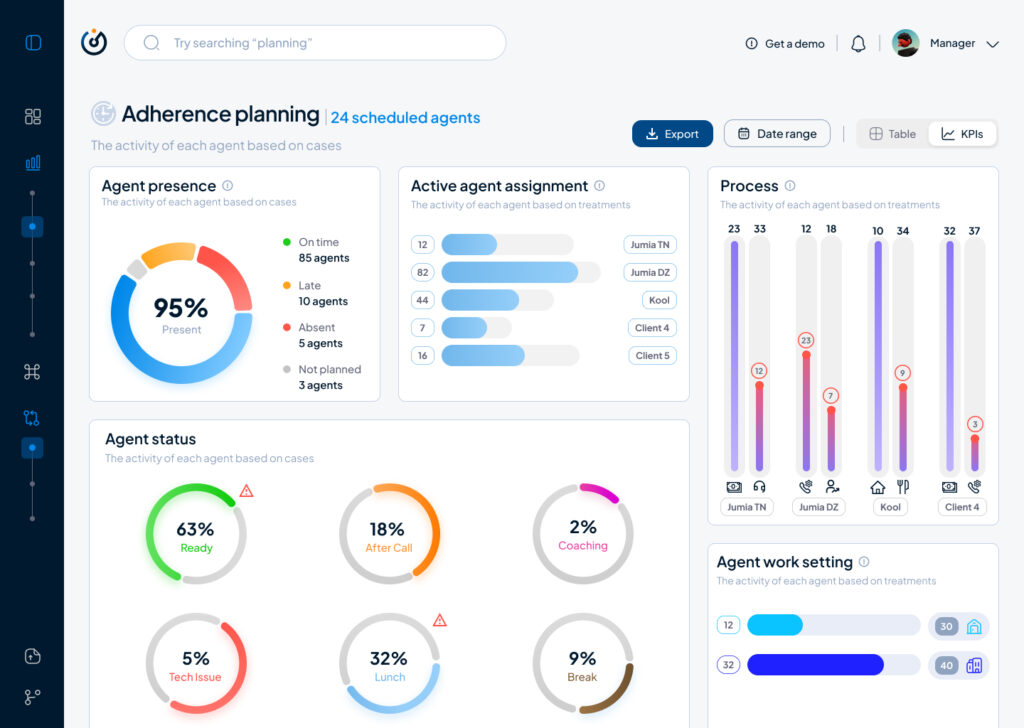
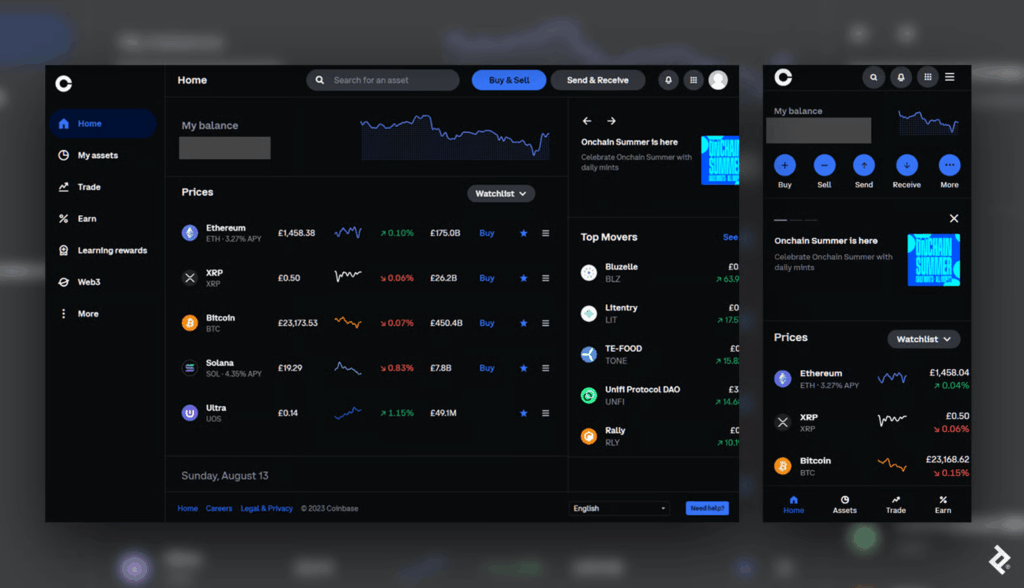
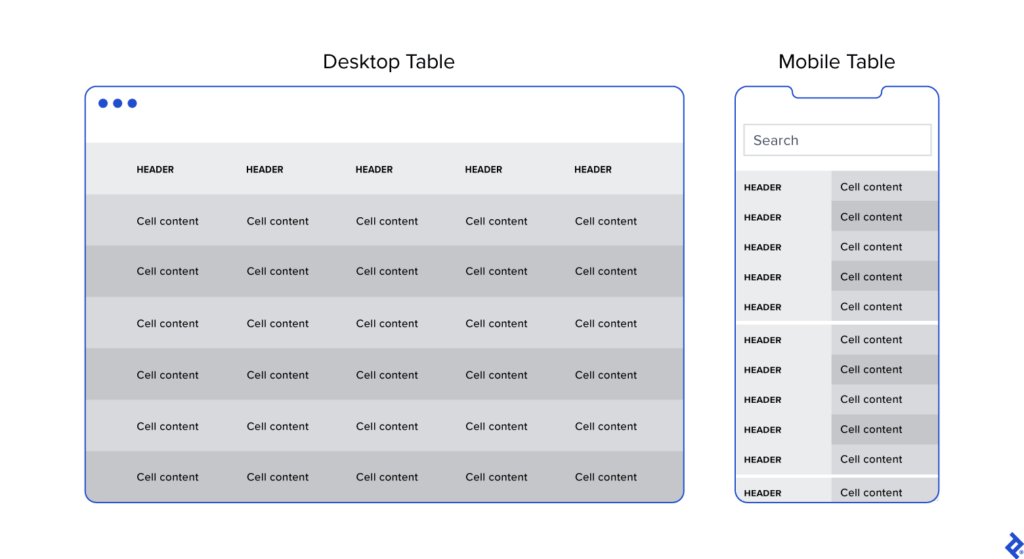
The authors explain that traditional UI testing still relies heavily on manual inspection or DOM-based element identification, which can be slow, brittle and prone to human error. In contrast, computer vision can directly analyze rendered screens: detecting missing buttons, misaligned text, broken layouts, or unwanted shifts across different devices and screen sizes. This makes visual testing more reliable and scalable, especially for modern responsive interfaces where designs constantly change during development.
One key contribution from the paper is the use of deep learning models such as YOLO, Faster R-CNN, and MobileNet SSD for object detection of UI elements. These models not only recognize what is displayed on the screen but verify whether the UI looks as intended, something code-based tools often miss when designs shift or UI elements become temporarily hidden under overlays. By incorporating techniques like OCR for text validation and structural similarity (SSIM) for layout comparison, the testing process becomes more precise in catching subtle visual inconsistencies that affect the user experience.
Conclusion
This opens a potential master thesis direction where computer vision not only checks whether UI elements are visually correct but also evaluates user affect during interaction, identifying frustration, confusion, or cognitive overload as measurable usability friction. Such a thesis could bridge technical UI defect detection with affective UX evaluation, moving beyond “does the UI render correctly?” toward “does the UI emotionally support its users?”. By combining emotion recognition models with CV-based layout analysis, you could develop an adaptive UX testing system that highlights not only where usability issues occur but also why they matter to the user.