In my last homelabbing post, I talked about getting my server set up with Docker and hosting my first applications. A logical next step on my list was to tackle network-wide ad-blocking. As I hinted before, the time finally came to set up a PiHole. I was excited to improve my own network but also to get my hands on a piece of open-source software that is widely loved.
For those unfamiliar, PiHole works differently than an add blocking browser extension. Instead of scanning websites for ad-like code, it operates as a DNS sinkhole. In simple terms, when any device on your network tries to contact a server known for serving ads, the PiHole intercepts that request and sends back an empty response, so the ad never even loads. The biggest advantage? It works for everything on your network, your laptop, your phone, and even your Smart TV, where ad-blockers are often non-existent.
The setup process itself was a great hands-on experience. I used a tiny Raspberry Pi Zero that I got from my brother for christmas, flashed the operating system to an SD card, enabled SSH for remote access, and plugged it into my router. From there, running the single install command and watching it work its magic was incredibly satisfying. A few configuration changes on my router to direct all DNS traffic through the Pi, and it was up and running, protecting me from ads. ;D
Impact for my Masters Thesis
This is where this little project became a huge impulse for my thesis. While exploring the PiHole’s web dashboard, I stumbled upon a perfect, real-world UX issue. To block a domain, you add it to a blocklist. To allow one, you add it to an “allow list.” On the dashboard, the button to add a domain to the allow list is green.
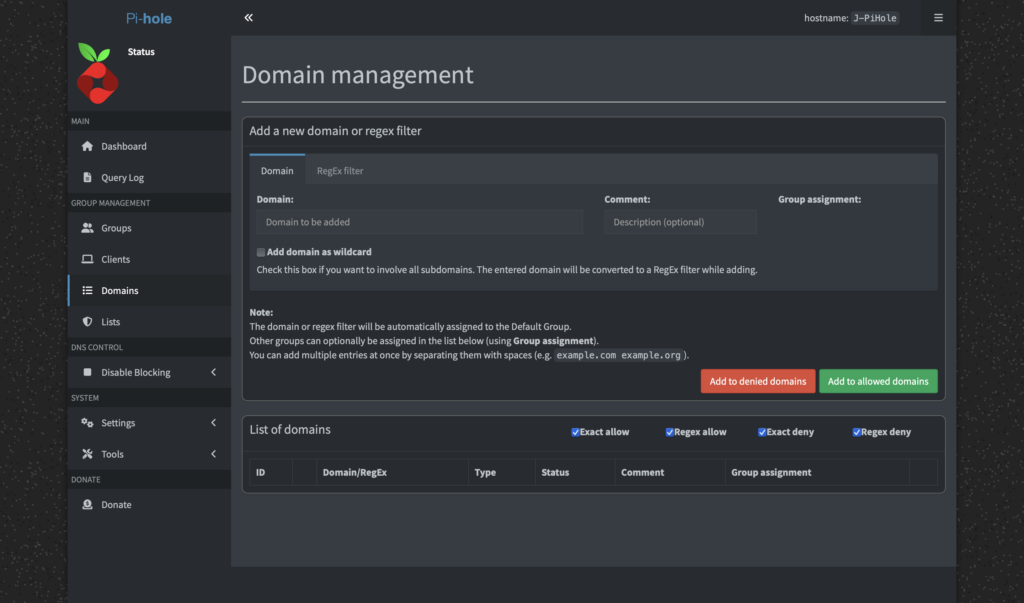
As a designer, green signifies a positive action, like adding something while red signals a negative action, like deleting something. More than once, I found myself accidentally clicking the green “Allow” button when my actual intention was to block a domain. It’s a classic UX problem where the visual signifier conflicts with the user’s intent. For a developer, a green button for “allow” might make perfect sense, it’s the “good” list. But for a user managing blocklists, it creates confusion.
This was a firsthand example of a barrier a designer could help lower. I immediately thought, “This is open source, I should be able to fix this!” I wanted to change the button color, maybe add an icon, or just improve the layout. But then I hit another wall: the documentation on how to change interface elements wasn’t straightforward for a non-developer. I literally had no idea, where to start.
This entire experience perfectly encapsulates the core of my thesis. It’s not just about finding UX issues, but about the entire process: identifying a problem, understanding the contribution workflow, and finding the right documentation. My simple home lab project has given me a tangible case study, a real problem to solve, and a clear path to explore for my “Designer’s Guide to Open Source.” It’s the first step in moving from theory to a real, practical contribution.
Accompanying Links
Pi-hole official website – https://pi-hole.net/
Raspberry Pi Zero – https://www.raspberrypi.com/products/raspberry-pi-zero/
Ai was used to formulate this blogpost (Gemini + WisprFlow)
