16 – Pulling It All Together

After spending time designing each part of the app on its own, I knew the next step was to figure out how it all fits together. It’s one thing to have a solid Home tab, a clear Activity tab, and a flexible Settings area. But the real challenge is making the tool feel like one connected experience instead of just three separate features sitting side by side.

So I started mapping the full user journey, from the moment someone opens the app for the first time to the moment they take their first action. The goal was to make sure every screen, every tap, and every option felt like part of a bigger flow.

It starts with Home. This is where the user gets a quick update on their privacy status and can tap one button to begin scanning. Once the scan is done, they’re either shown a clean summary that says everything looks good, or they’re nudged to go check out their results in the Activity tab.

That handoff between Home and Activity became really important. It needed to feel natural, not like you’re being dropped into another part of the app. So I kept asking myself questions like, “What happens after a scan?” and “What does the user want to do next?” The answer is usually some version of “check what was found” or “see if anything needs action.”

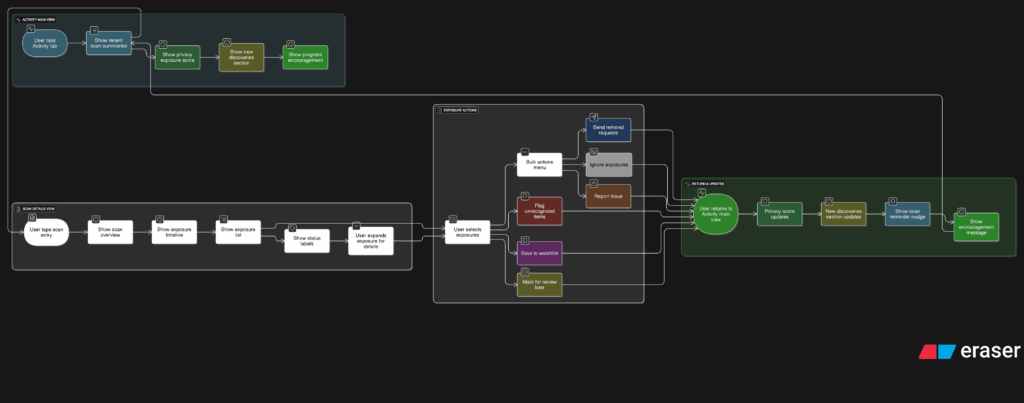
Once they land in Activity, the results are organized clearly. Old scans are listed with summaries, and new findings are labeled in a way that stands out without being too loud. From there, users can open a scan, review the exposed data, and decide what to do. They might request a removal, ignore it, or save it for later.

Then there’s Settings, which sits quietly in the background but plays a big role in shaping how the app works. Before a user ever hits “Scan Now,” the tool has already been set up to know what data to look for and where to search. That part happens quietly but meaningfully. And at any point, the user can return to the Settings tab to update what they’re tracking or change how often they want to scan.
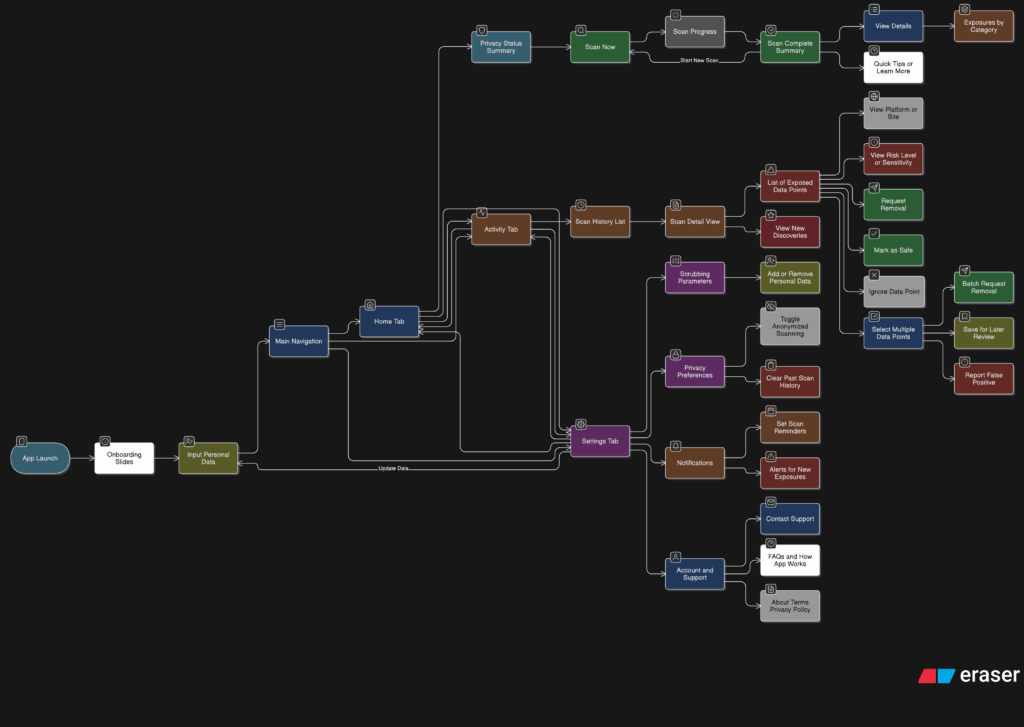
Full App Flow

The more I worked on this flow, the more I realized how important rhythm is. The app should never feel like it’s asking too much at once. It should guide, not demand. There’s a gentle back-and-forth between checking your privacy, understanding your exposure, and deciding what to do about it. That rhythm is what makes the whole thing feel usable.

At this point, the main structure is starting to come together. There are still things to work out, like onboarding, empty states, and what the app says when no data is found. But now that the core journey is mapped, I feel more confident about shaping the rest of the experience.
15 – Defining What Gets Scanned

After sketching out how users would scan their data and review the results, I knew it was time to focus on something deeper. If someone’s trusting this tool to find their personal data online, they should be able to control exactly what it’s looking for and how it behaves. That’s where the Settings tab comes in, specifically, the part that lets people manage the data points the app scans for.

This is more than just a list of preferences. It’s the part of the app that decides how useful the tool really is. If it can’t scan for the right things or look in the right places, then it doesn’t matter how nice the interface looks. So I started thinking through the user journey here. What does it feel like to set this up for the first time? How easy is it to update your info later? What happens when someone wants to remove or change something?

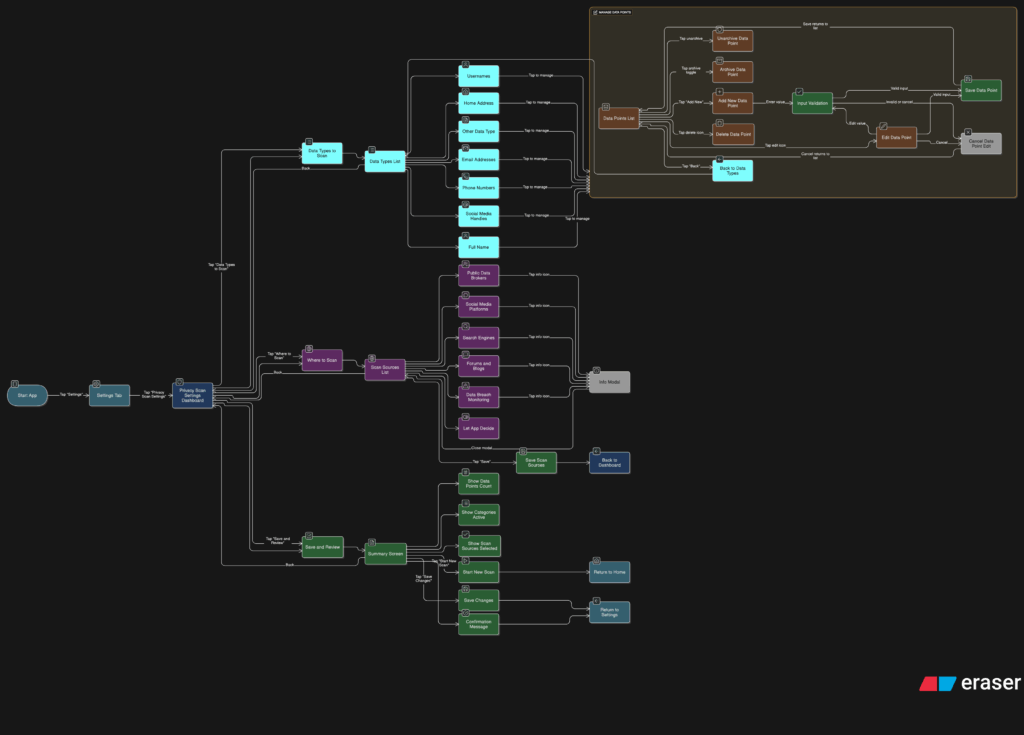
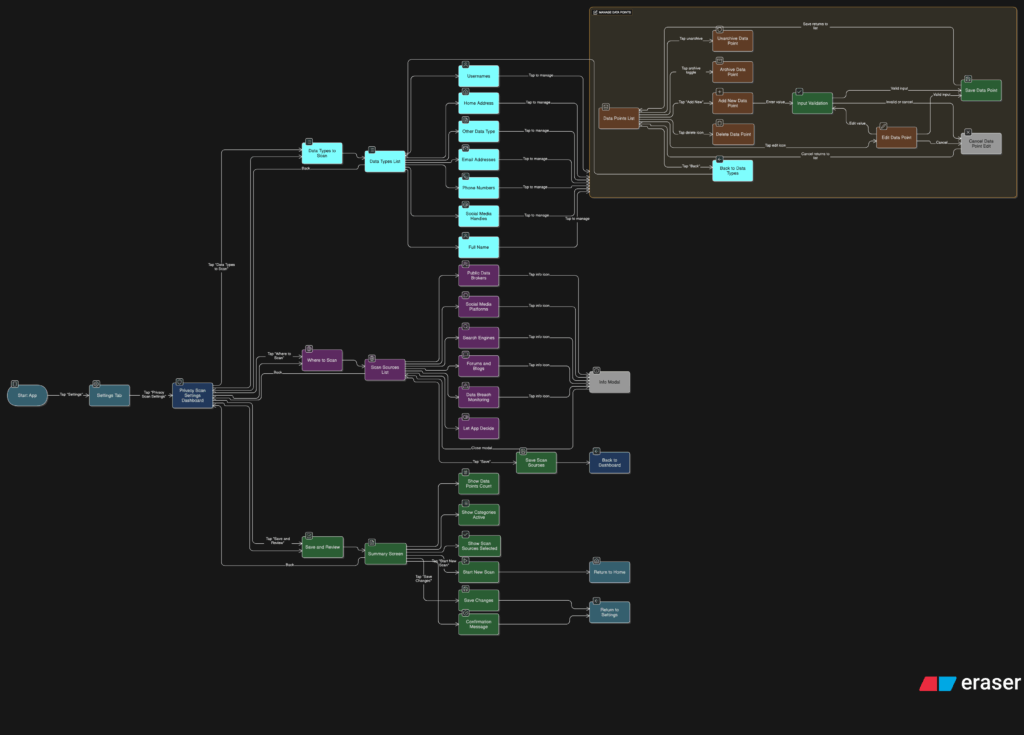
I broke it down into a few simple flows. When someone taps into this section, they see a list of data types like full names, email addresses, phone numbers, home addresses, usernames, and social media handles. Each one has a toggle, so they can decide which categories they want the app to track. Tapping into a category opens a list of actual data points. For example, under “email addresses,” you might see:

Users can add new entries, remove old ones, or give them a label like “Work” or “Personal” to keep things organized. It should feel simple, like updating a contacts list.

User flow of the entire settings tab
Zooming into the Scan Preferences

Another part of this section is where the app should scan. Some people might want full control, while others may prefer a more hands-off setup. So I imagined a second area where users can select the types of platforms the app should search, like:

  • Public data brokers
  • Social media sites
  • Search engines
  • Forums or blogs
  • Data breach records

By default, the app could suggest a recommended setup, but users who want to go deeper can switch things on or off based on what they care about.

I also wanted to give users a quick summary before they leave this section. Something that says, “You’re scanning for 6 data points across 4 categories.” Just a simple, reassuring message that confirms everything’s set up the way they want. From there, they can either save changes or jump straight into a new scan.

This part of the tool gives people full control over what they’re sharing with the app and what the app is doing for them. It also needs to feel like something they can come back to anytime. Maybe they changed their email or want to track a new phone number. It should be easy to update without starting from scratch.

14 – What the Activity Tab Unlocks

Once I felt like the Home tab had a solid direction, I shifted my focus to the Activity tab. This is the part of the app that lets users look back and understand what the tool has found over time. If the Home tab is about quick action, the Activity tab is about reflection and detail. It’s where things get a bit more layered.

I started by asking a few questions. After a scan is done, what would someone want to do next? What would they expect to see if they tapped into their past results? The obvious answer was, they’d want to understand where their data showed up, how serious it is, and what actions they can take. So that became my starting point for the user flow.

The journey into the Activity tab begins with a list of past scans. Each entry shows the date, how many exposures were found, and a quick status, like “3 removals in progress” or “Last checked 4 days ago.” This lets the user get a feel for their privacy over time. From there, tapping into any scan opens a detailed breakdown.

Inside that scan detail view, I imagined a set of cards or sections for each exposure. Each card would show where the data was found, maybe on a marketing site, a data broker list, or a forum. It would also show what kind of data was found, like a phone number or full name, and whether the app could help remove it. There would be a clear action button like “Request Removal” or “Ignore for Now,” giving the user simple choices without pressure.

User flow of the activity tab

Another part I thought about was how to show overall progress. Maybe there’s a visual indicator on the main Activity screen that shows how your privacy is improving over time. Something like a simple line graph or a color-coded “privacy score” that updates as you take action. I don’t want it to feel gamified, but it should feel encouraging. Like you’re making progress, not just looking at problems.

One small but important touch I sketched out was what happens when there are new exposures. Maybe we highlight them with a subtle label like “New since last scan” or bump them to the top of the list. This way the user’s attention naturally goes to the most important updates.

This part of the app is where people go to feel more in control. It’s not just a log of past activity. I wanted it to feel full of helpful options without overwhelming anyone.

13 – Home Tab, How should it work?

After figuring out the broader structure of the tool, the next step was to zoom in and really understand what should happen on the Home tab. This is where everything begins. It’s the screen someone sees the moment they open the app, so it needs to be clear, simple, and useful right away.

I started thinking through the experience from a user’s point of view. What would they be trying to do here? Most likely, they just want to know how exposed their personal data is and what they can do about it. They’re not coming in to explore every setting or dig through past reports. They want a quick answer to a big question: “Am I okay online?”

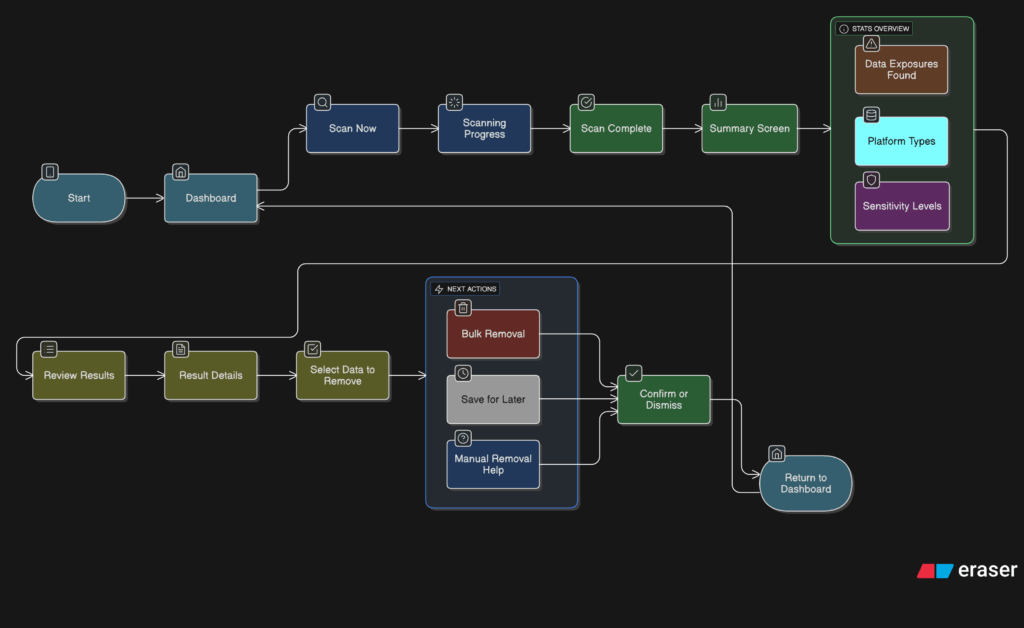
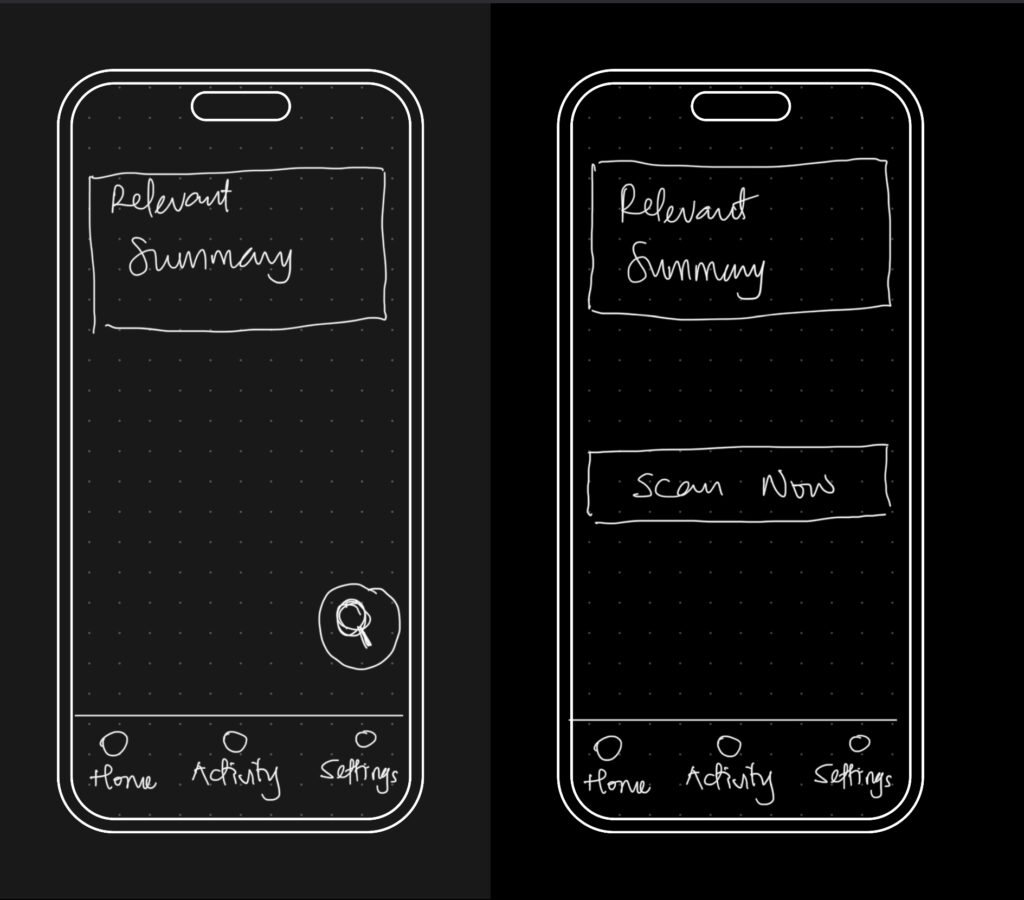
So I mapped out the user flow for this part. It starts with a clean welcome screen that gives a clear privacy status. This might say something like “You have 3 data exposures found” or “You’re all clear.” Just enough to give the user a sense of where things stand. From there, the most important action is the Scan Now button. This is the main thing the app offers, and it needs to be obvious and easy to tap.

Once the user hits that button, the app begins scanning for their data across different online sources. I imagined a simple progress indicator, maybe a friendly loading animation or a visual scan bar. No need for too many details yet. Just a sense that the app is working quietly in the background to find their information.

After the scan is complete, the user is taken to a short summary. This is where the tone really matters. It shouldn’t feel scary or overwhelming. It should feel clear and in control. Something like
“We found 4 pieces of your personal data online. Tap to review and take action.”

Home tab user flow
User flow to perform a scan

I also had to think about smaller touches. What if the user has never scanned before? Do we show an empty state with a short message that explains the tool? What about returning users? Should they see their last scan result or a prompt to scan again?

These are the kinds of small questions that start to stack up once you begin thinking through a full user journey. The challenge is to give people just the right amount of information without making things feel too heavy.

At this stage, I’m keeping things flexible. The layout will probably change as I move on, but the flow feels right. Welcome the user, show them where things stand, let them take action quickly, and offer a calm, clear summary when the scan is done.

12- Finding Structure

I’ve been reflecting a lot since the speed dating session. The feedback was clear: people grasped the purpose of the prototype almost instantly, which was uber-good. I didn’t have to over-explain, and that felt like a win, though I knew it needed more structure. The project was described as having a “careful” personality, which I really appreciated. It aligns perfectly with the tone I’m aiming for: clear, intentional, and respectful of people’s data.

So I took a step back to think more about how the privacy scrubbing tool should actually work as a whole. Since I’m building this as a mobile app or possibly a mobile-first web app, I needed to start mapping out how the experience would feel from the first moment someone opens it. Rather than focusing only on how the home screen looks, I started thinking about how all the different parts of the app connect and what role each one plays.

The idea was to shape a full user journey, not just a set of screens. I wanted the app to feel like it had a clear rhythm, starting on the Home tab where you get a quick view of your privacy status and can run a scan right away. That screen would offer a calm summary, like “We found this much of your data online,” along with a clear suggestion for what to do next. The one-tap scan button would live here too, ready when needed. From there, I thought about how the app should guide the user. Should the tabs always be visible? How do we help users understand where they are and what to do next? How do we balance helpful information with simplicity?

The big realization was that the entire experience could be organized around three core areas: the Home, Activity, and Settings tabs. Each one would represent a different phase of the user’s interaction with the app — starting, reviewing, and customizing. It seems simple now, but this framing helped everything start to click into place.

So I began from scratch, just trying to map out what each section really needed to do.

  • Home would be where everything starts. It’s where the user gets a quick status update and triggers a scan.
  • Activity would give access to deeper insights about past scans and new discoveries.
  • Settings would let the user control everything else, especially what the tool is scanning for in the first place.

This new framing gave me something solid to work with. I was no longer thinking screen by screen or feature by feature. I was thinking system-wide. What kind of flow did I want someone to experience? What should feel immediate? What should feel controllable? What should feel private? I started writing down questions like:

  • What’s the first thing someone wants to know when they open a tool like this?
  • What’s the minimum information they need to feel informed, but not overwhelmed?
  • How do I make it feel helpful, but not invasive?

The answers pointed toward simplicity and calm. Not a flashy dashboard. Not a scary privacy alert system. Just a clear, steady interface that makes you feel like someone’s helping you take care of something that’s long overdue.